> ## Documentation Index
> Fetch the complete documentation index at: https://docs.vivix.ai/llms.txt
> Use this file to discover all available pages before exploring further.
# Build an app the character can use
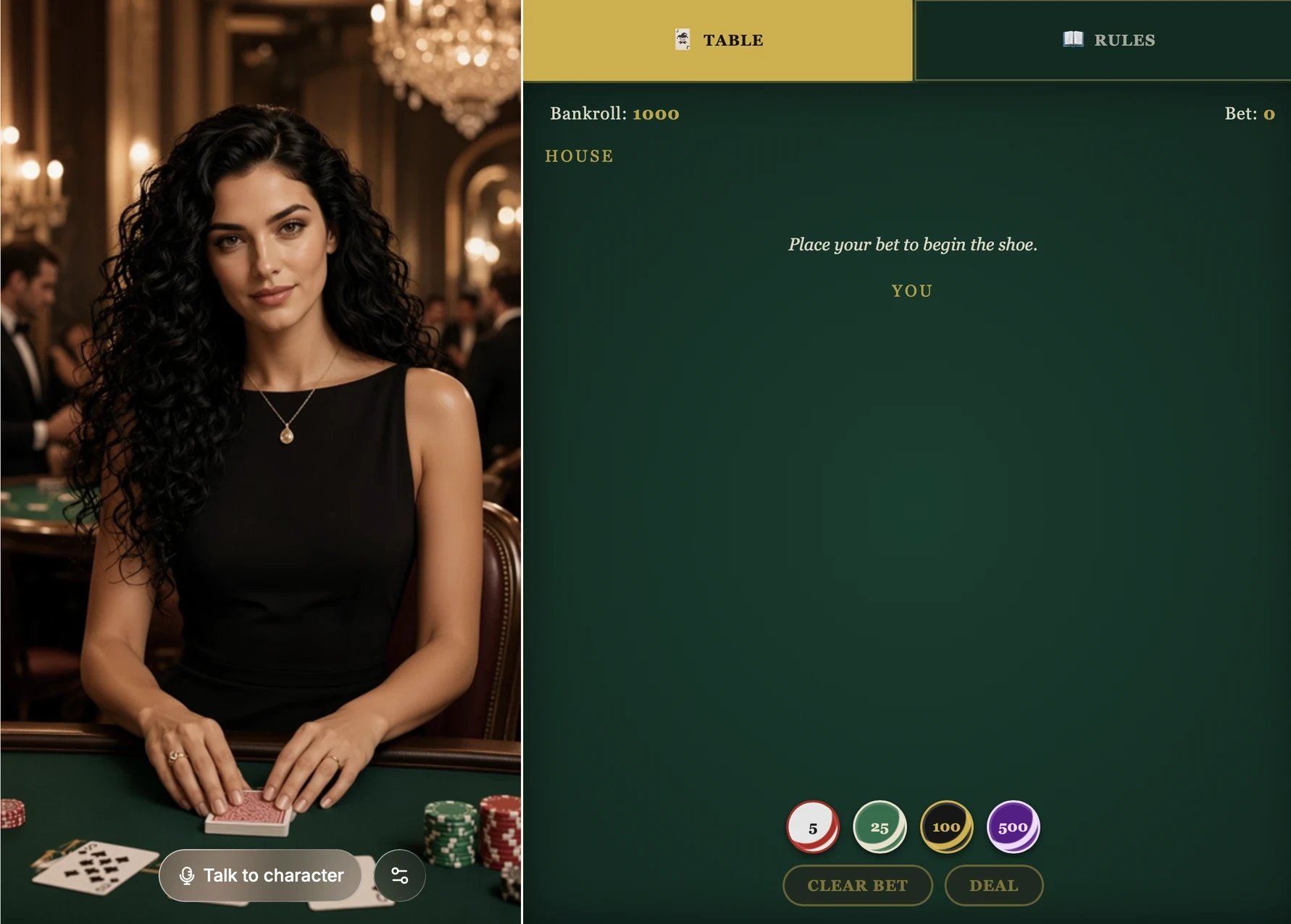
An app is an interactive panel that sits next to your character, such as a card game, a mini game, a product list, or a set of activities to choose from. Viewers can click and type in it, and the character can use it too: it deals the next card, moves on to the next question, or talks about the product a viewer just picked.
The [Vespera](/agent/create-character/from-template#built-in-templates) template is a good example: she chats with the player while dealing blackjack at the table next to her.
 ## Create an app
Open your character's project and tell the agent what you want. It helps to cover four things:
* **What it looks like**: the layout, the main elements, and the visual style.
* **How it works**: the rules, and how things like the score change.
* **What viewers do**: the buttons they click or the words they type.
* **What the character does**: which moves the character makes itself, and how it reacts to viewers.
When the app is ready, a **Game preview** card shows up in the chat. Click **Open preview** to try the app on its own. This doesn't start a conversation or use credits.
Open the **Live preview** panel and click **Talk to character**. Ask the character to make a move, and click through the app yourself to see how it reacts.
Tell the agent what to change, such as the layout, the rules, or how the character reacts. After each change, a new **Game preview** card appears so you can check it before trying it live.
## Example: a mini game with a pet
The Toffee template suggests this request. It creates a complete game:
```text wrap theme={null}
Create an interactive "Carrot or Tissue" game that I can play with a kitten.
Use a retro arcade pixel-art style. Place a pixel kitten in the center, with a carrot on one side and a tissue on the other. Show the number of food cans in the top-right corner, starting at 2. Make the experience cute and playful, with arcade-style pixel animations and sound effects.
The user sends commands through the input field. When the user enters "carrot" or "tissue", the kitten should visibly pause to think, looking left and right, hesitating, tilting its head, or tentatively reaching out with a paw before choosing one of the two items. Its choice must not always be correct; support both correct and incorrect answers.
If the kitten picks the item matching the command, add 1 food can, play a pixel celebration animation, and display "Great job!" If it picks the wrong item, subtract 1 food can, play a confused or disappointed kitten animation, and show feedback that the answer was incorrect.
After each round, return to the waiting state and keep the current food-can count so the user can continue. Clearly show the waiting, thinking, choosing, correct, and incorrect states. If the input is neither "carrot" nor "tissue", do not start a round or change the food-can count. Ask the user to enter "carrot" or "tissue".
```
## More ideas
## Create an app
Open your character's project and tell the agent what you want. It helps to cover four things:
* **What it looks like**: the layout, the main elements, and the visual style.
* **How it works**: the rules, and how things like the score change.
* **What viewers do**: the buttons they click or the words they type.
* **What the character does**: which moves the character makes itself, and how it reacts to viewers.
When the app is ready, a **Game preview** card shows up in the chat. Click **Open preview** to try the app on its own. This doesn't start a conversation or use credits.
Open the **Live preview** panel and click **Talk to character**. Ask the character to make a move, and click through the app yourself to see how it reacts.
Tell the agent what to change, such as the layout, the rules, or how the character reacts. After each change, a new **Game preview** card appears so you can check it before trying it live.
## Example: a mini game with a pet
The Toffee template suggests this request. It creates a complete game:
```text wrap theme={null}
Create an interactive "Carrot or Tissue" game that I can play with a kitten.
Use a retro arcade pixel-art style. Place a pixel kitten in the center, with a carrot on one side and a tissue on the other. Show the number of food cans in the top-right corner, starting at 2. Make the experience cute and playful, with arcade-style pixel animations and sound effects.
The user sends commands through the input field. When the user enters "carrot" or "tissue", the kitten should visibly pause to think, looking left and right, hesitating, tilting its head, or tentatively reaching out with a paw before choosing one of the two items. Its choice must not always be correct; support both correct and incorrect answers.
If the kitten picks the item matching the command, add 1 food can, play a pixel celebration animation, and display "Great job!" If it picks the wrong item, subtract 1 food can, play a confused or disappointed kitten animation, and show feedback that the answer was incorrect.
After each round, return to the waiting state and keep the current food-can count so the user can continue. Clearly show the waiting, thinking, choosing, correct, and incorrect states. If the input is neither "carrot" nor "tissue", do not start a round or change the food-can count. Ask the user to enter "carrot" or "tissue".
```
## More ideas
 | App | Example request |
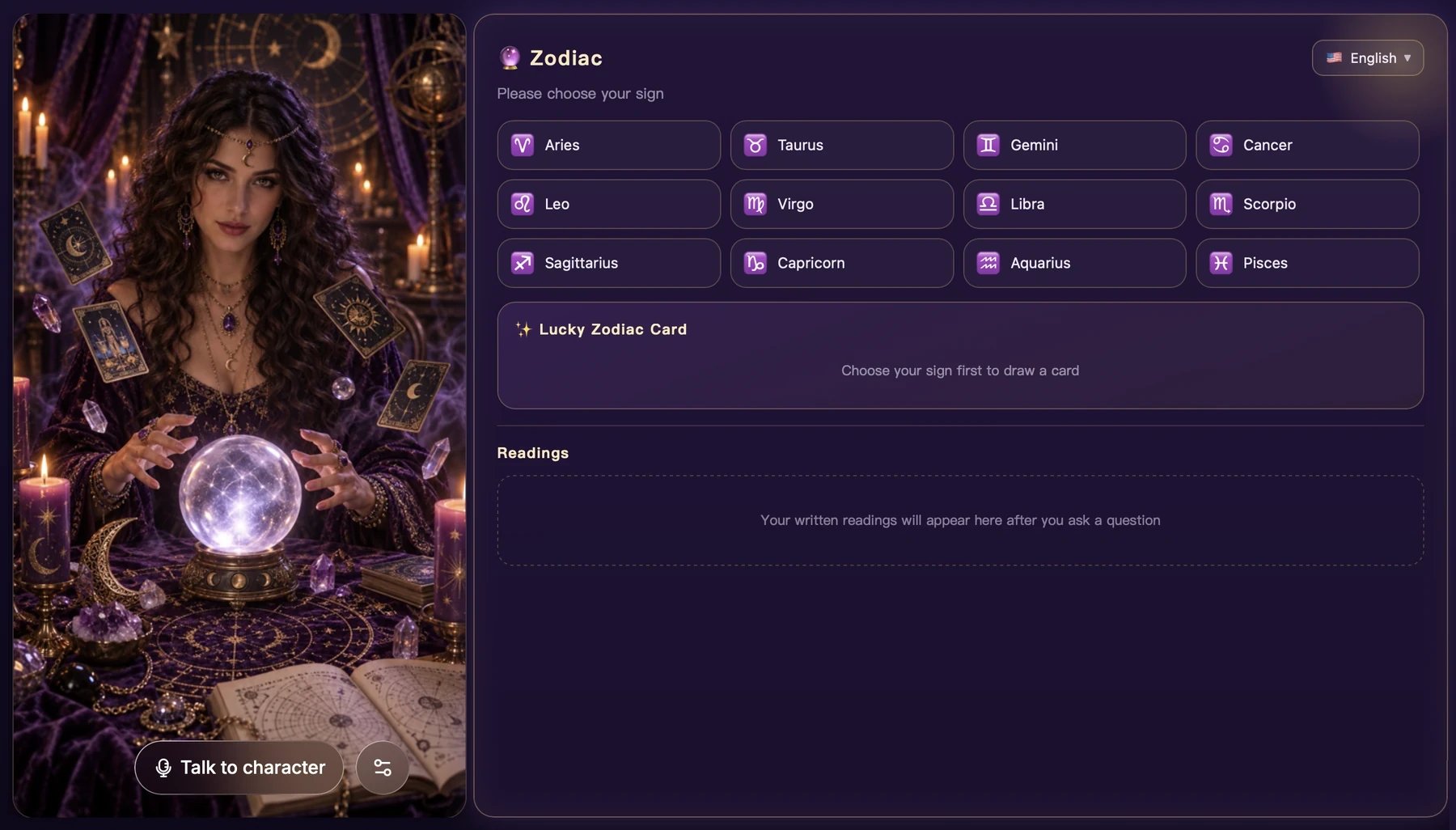
| - | - |
| Product list | Add a product list with these three products. When a viewer picks one, have the character introduce it. |
| Single product card | Show a product card for this item with its price and a link to the store page. |
| Activity picker | Add a panel with three activities viewers can choose from, and have the character start the one they pick. |
| Quiz scoreboard | Add a scoreboard for the quiz. The character awards a point when the viewer answers correctly. |
Product cards, product lists, and activity pickers use a standard Vivix look unless you ask for something different. Just describe the style you want.
An app changes what's shown in the panel next to the character. If you also want the character's own scene or outfit to change when a viewer picks something, say so in your request. See [Perform specific content](/agent/capabilities/performance).
| App | Example request |
| - | - |
| Product list | Add a product list with these three products. When a viewer picks one, have the character introduce it. |
| Single product card | Show a product card for this item with its price and a link to the store page. |
| Activity picker | Add a panel with three activities viewers can choose from, and have the character start the one they pick. |
| Quiz scoreboard | Add a scoreboard for the quiz. The character awards a point when the viewer answers correctly. |
Product cards, product lists, and activity pickers use a standard Vivix look unless you ask for something different. Just describe the style you want.
An app changes what's shown in the panel next to the character. If you also want the character's own scene or outfit to change when a viewer picks something, say so in your request. See [Perform specific content](/agent/capabilities/performance).