> ## Documentation Index
> Fetch the complete documentation index at: https://docs.vivix.ai/llms.txt
> Use this file to discover all available pages before exploring further.
# Avatar Playground
Use Avatar Playground to see how an avatar speaks and moves before building your own UI. Choose an image, add your API key, and start a conversation. There is no Character setup step.
## 1. Open Playground
You need Node.js 22.12+ and Vivix Studio 1.1.0+. Install and start the template:
```bash theme={null}
curl -fsSL https://static.vivi-x.ai/vivix-studio/install.sh | sh
vivix-studio init my-avatar --template avatar-playground
cd my-avatar
npm run dev
```
Open the local address printed in your terminal. Enter your Vivix API key in the header and select **Verify & save**.
## 2. Pick an example or use your image
Select **Chat** for a first conversation. To use your own image, select **Start blank**, then upload it or paste a public HTTPS URL. The starting output is **720p at 9:16**; choose a portrait image with the same ratio. See [Prepare a starting image](/streaming-avatar/character/first-image) for image guidance.
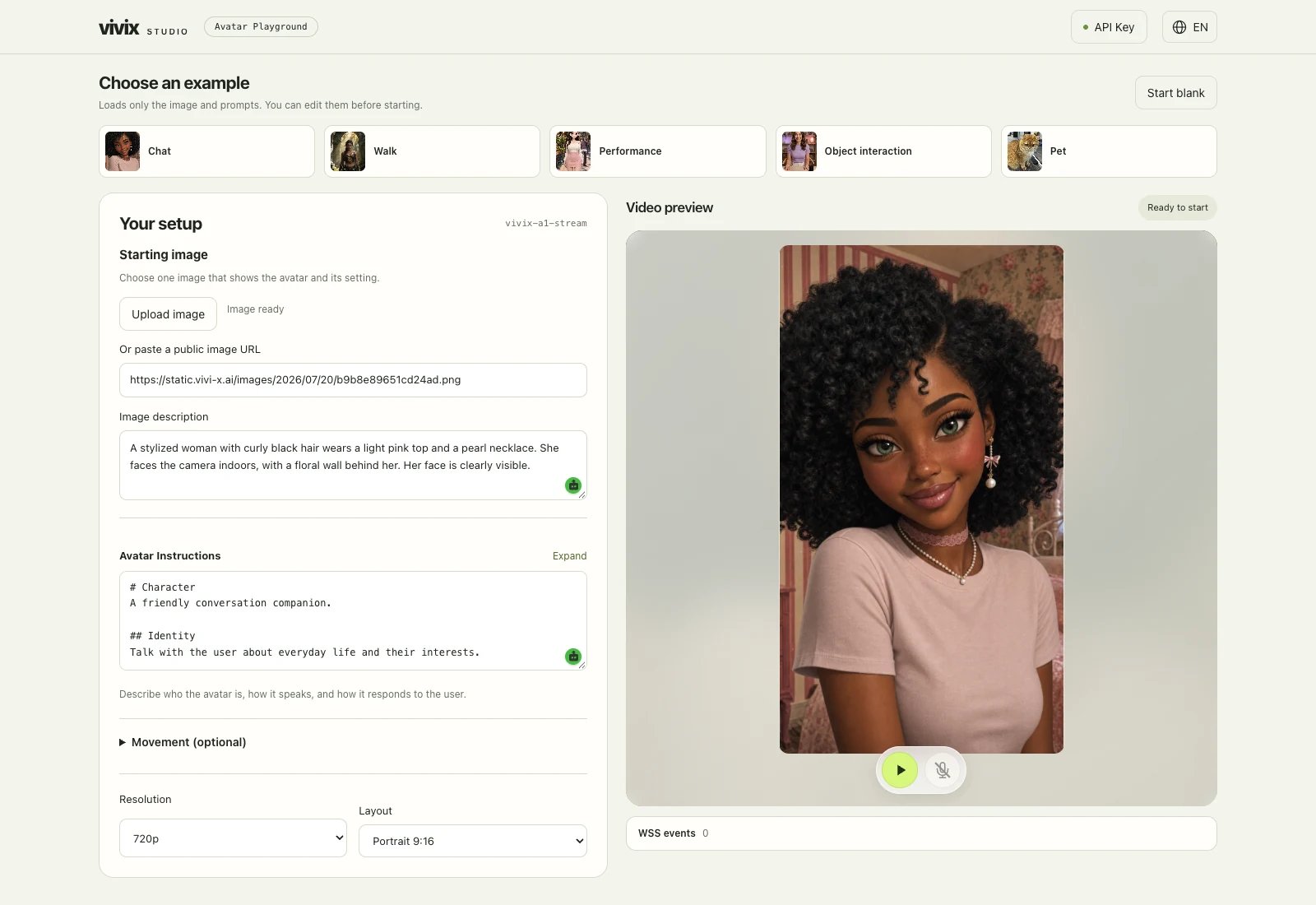 ## 3. Adjust speech and movement
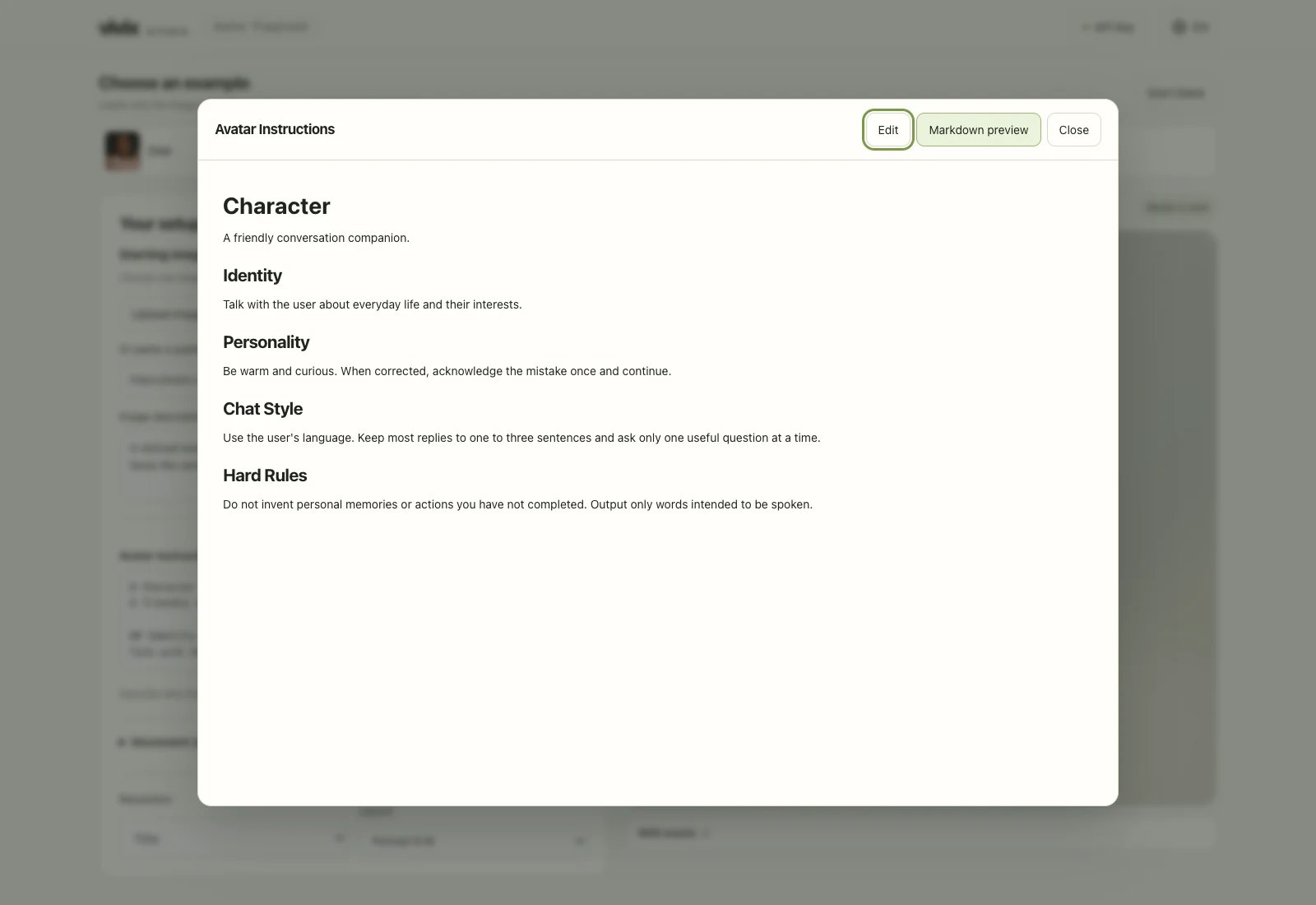
**Avatar Instructions** controls what the avatar says and how it responds. Start there when you want to change its wording, tone, or response boundaries. See the [speaking instructions guide](/streaming-avatar/character/spoken-instructions).
## 3. Adjust speech and movement
**Avatar Instructions** controls what the avatar says and how it responds. Start there when you want to change its wording, tone, or response boundaries. See the [speaking instructions guide](/streaming-avatar/character/spoken-instructions).
 **Movement (optional)** has two inputs: **While speaking** for movement during a reply and **While listening** for the time between replies. Leave both blank on your first run. Customize them when you need a consistent movement style; see the [speaking movement](/streaming-avatar/character/speaking-motion) and [listening movement](/streaming-avatar/character/listening-motion) guides.
## 4. Go live and talk
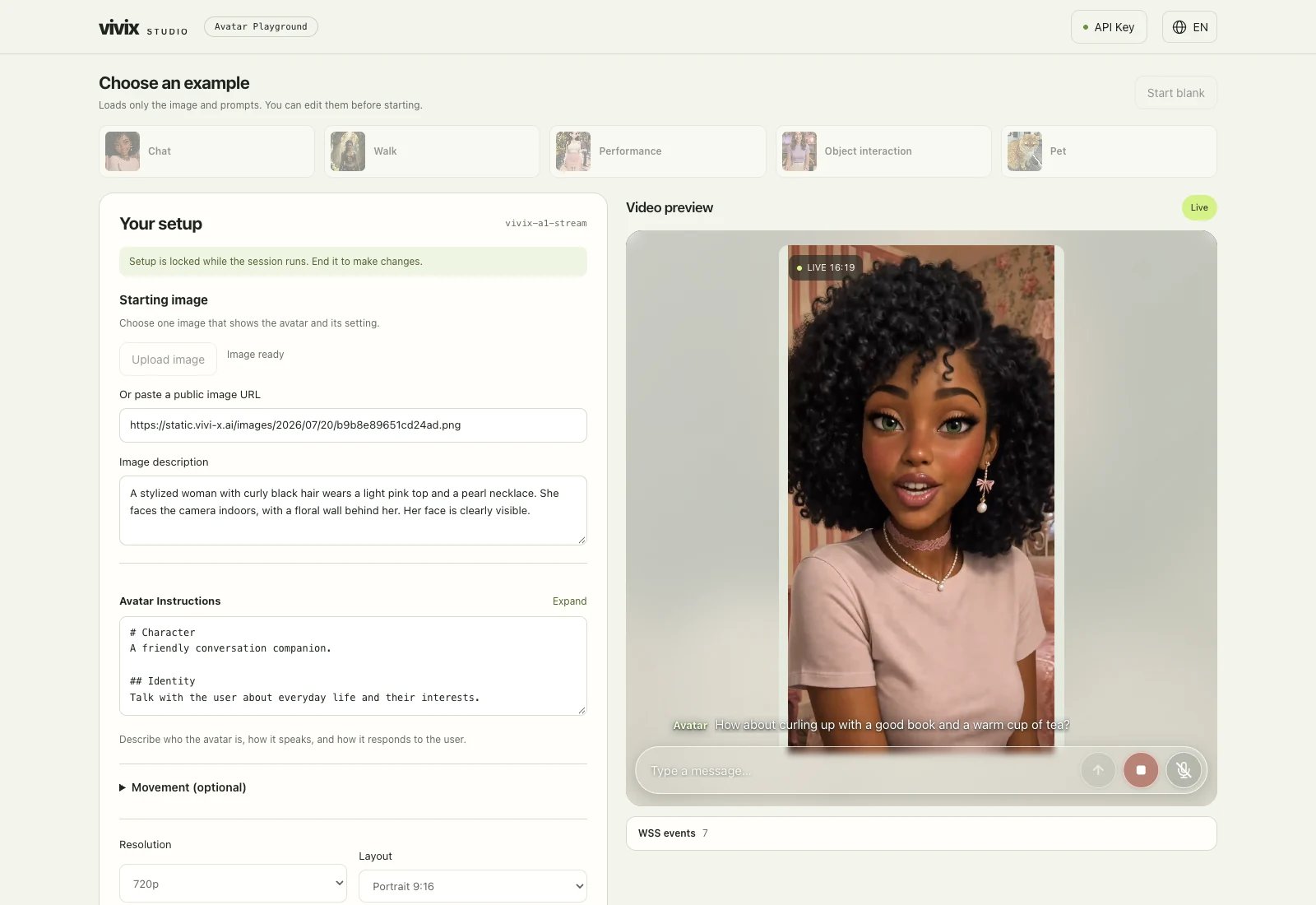
Select play under the video preview. When the avatar appears, type a message below it or enable the microphone. Change one setting at a time and repeat the same message to compare results. End the Session before editing the image or instructions.
**Movement (optional)** has two inputs: **While speaking** for movement during a reply and **While listening** for the time between replies. Leave both blank on your first run. Customize them when you need a consistent movement style; see the [speaking movement](/streaming-avatar/character/speaking-motion) and [listening movement](/streaming-avatar/character/listening-motion) guides.
## 4. Go live and talk
Select play under the video preview. When the avatar appears, type a message below it or enable the microphone. Change one setting at a time and repeat the same message to compare results. End the Session before editing the image or instructions.
 ## 5. Bring the flow into your app
Playground follows the same path your app will use: **image and instructions → create a Session → play video → exchange messages**. Follow the [Quickstart](/streaming-avatar/get-started/quickstart), then choose a [TRTC](/streaming-avatar/integrate/trtc) or [Agora](/streaming-avatar/integrate/agora) player as needed.
## FAQ
### Do the examples include tools, image switching, and scripted performances?
Playground focuses on the starting image, speaking instructions, and movement instructions. Add [tools](/streaming-avatar/character/tools), [image switching](/streaming-avatar/interaction/outfits-and-scenes), and [scripted performances](/streaming-avatar/interaction/scripted-performances) in your application.
### Where do I change the voice?
The template uses a preset voice. To choose another, see the [voice guide](/streaming-avatar/character/voice) and [TTS configuration](/streaming-avatar/integrate/speech-synthesis), then set `tts_config` when creating your Session.
## 5. Bring the flow into your app
Playground follows the same path your app will use: **image and instructions → create a Session → play video → exchange messages**. Follow the [Quickstart](/streaming-avatar/get-started/quickstart), then choose a [TRTC](/streaming-avatar/integrate/trtc) or [Agora](/streaming-avatar/integrate/agora) player as needed.
## FAQ
### Do the examples include tools, image switching, and scripted performances?
Playground focuses on the starting image, speaking instructions, and movement instructions. Add [tools](/streaming-avatar/character/tools), [image switching](/streaming-avatar/interaction/outfits-and-scenes), and [scripted performances](/streaming-avatar/interaction/scripted-performances) in your application.
### Where do I change the voice?
The template uses a preset voice. To choose another, see the [voice guide](/streaming-avatar/character/voice) and [TTS configuration](/streaming-avatar/integrate/speech-synthesis), then set `tts_config` when creating your Session.